Basically Everything on cortana

There are various Virtual Assistants on different devices and platform, these virtual assistant are Artificial Intelligence programs that can perform certain task like or more effectively than our human personal assistants. In this article am gonna talk about Cortana the Virtual assistant created by Microsoft for windows 10, windows 10 mobile, windows phone 8.1, Microsoft band, surface headphones, Xbox One, ios, android and so many other devices…
Cortana is a virtual assistant that can set reminders, recognize natural voice without the requirements for keyboard input and answer questions using the information from Bing search engine. One best things about cortana is that it’s available in different languages depending on the software platform or region it is used. The Languages available are English, Portuguese, French, German, Italian, Spanish, Chinese, Russian and Japanese.
Looking back at little history on Cortana, it was first demonstrated for the first time at the Microsoft BUILD Developer conference(April 2-4, 2014) in San Francisco. The Virtual assistant Cortana was named after a synthetic intelligence character in Microsoft Halo Video game franchise with the Jen Taylor as the character voice actress.


During the development of Cortana which started in 2009 in the Microsoft speech production team they had to interview human personal assistants to develop the digital assistant. It was the interview that inspired number of unique features in Cortana including the assistant notebook feature.
Cortana as been integrated into numerous product such as Microsoft edge, the browser bundled with window 10. Microsoft Windows in the car concept includes cortana. the concept makes it possible for drivers to make restaurant reservations and see places before they go. Microsoft also collaborate with Herman Kardon to announce INVOKE a voice activated speaker to make and receive calls with Skype and all of other features currently available in cortana. Cortana can simulate rolling dice and flipping a coin, cortana as a music recognition device, cortana integrate with Fours Square to provide restaurant and local attraction recommendations and LIFX to control Smart Bulbs.
I’m going to basically list everything Cortana can do below…
- Cortana can store personal information such as interest, locations, date, reminders and contacts in the ” Notebook”. users can also delete information from the notebook.
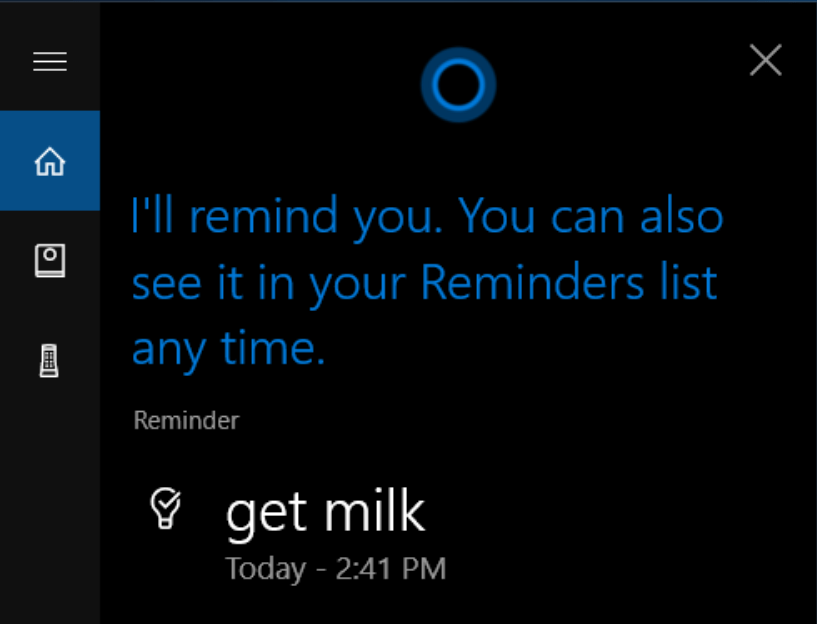
- Cortana as a built in System of reminders which for example can be associated with a specific contact
- Cortana is capable of capturing device notification on windows mobile and android then sending it to a windows 10 device.
- Cortana as a do not disturb mode in which users can use to specify quiet times, cortana can also call users by their name or nicknames which can be changed in the settings.
- Cortana can forecast/predict results in various sports, it was able to predict the winners of the first 14 matches of the football 2014 FIFA world cup knock out stage including semifinals.
- Cortana can solve mathematical equations.
- Cortana can search the internet for a keyword or phrase
- Cortana can display your local weather and can set alarm.
- Cortana can find file or folder on your computer and also open an application on your system
- Cortana can send a text message and compose and email.
The technology behind Cortana is The Natural Language Processing which is derived from Telime Networks(Bought by Microsoft, 2007) and are coupled with a semantic search database called Satori.
How to Activate Cortana
Cortana can be easily accessed from the task bar on your windows computer. Just click the cortana icon, enter a command into the search box or say “hey cortana” if your machine as a microphone and this feature is enabled. in order to enable the “hey cortana” features or keyboard shortcuts, first access cortana on your task bar next
i. Click settings (gear icon)
ii. Select talk to cortana in the pop up windows
iii. you can then turn on or off the response and keyboard shortcut options
How to Use Cortana and Enable/Disable Cortana On Xbox One
Cortana can be activated by simply signing into your Microsoft live account.
You can issue commands after activating cortana either by typing or by voice depending on your preference. To enable cortana on Xbox one, on your console
i. click the my Games & Apps
ii. Highlight App and Choose cortana
iii. follow the on screen prompts to restart your console and enable cortana.
For list of things cortana can do on your Xbox One, say “Hey Cortana what can i say ?” this will let you view categories and show you a list of simple commands.
To disable Cortana on Xbox one and use normal Xbox commands:
i. Turn on your Xbox one and press the Xbox button to access the guide
ii. Select settings > All Settings > System > Cortana settings
iii. In the window, highlight the on switch and press A to switch cortana off.
iv. Select Restart now.
How to Disable Cortana on Windows
In case you want to disable or turn off cortana you can follow these steps:
i. Right Click the task bar or cortana specifically
ii. Put your mouse over cortana in the selection window
iii. click hidden
If you feel hiding cortana is what you want to do it maybe wise to adjust the permission settings as well.
i. Access Cortana and click settings (gear icon)
ii. In the pop-up window select permission and history
iii. You can then click the links under permission at top to manage your details in the cloud on your devices or other services.
Basically I’ve talked about everything we need to know on Cortana (Windows) the virtual assistant… if you feel there are other things you want to know or other ideas you have on Cortana you can post a comment below…

 A.I 2D World
I didn’t know much about Cortana I will try to follow your guidelines and activate it on my system to get familiar with it
LikeLiked by 1 person